support@hestor.com 0161 660 1366 UK - 9:30am to 5:00pm (Monday - Friday)
GBP (£)
Picture PNG - Active X
Control: Picture PNG OCX
Being able to add PNG pictures to your Visual Basic 6 projects makes life so much easier.













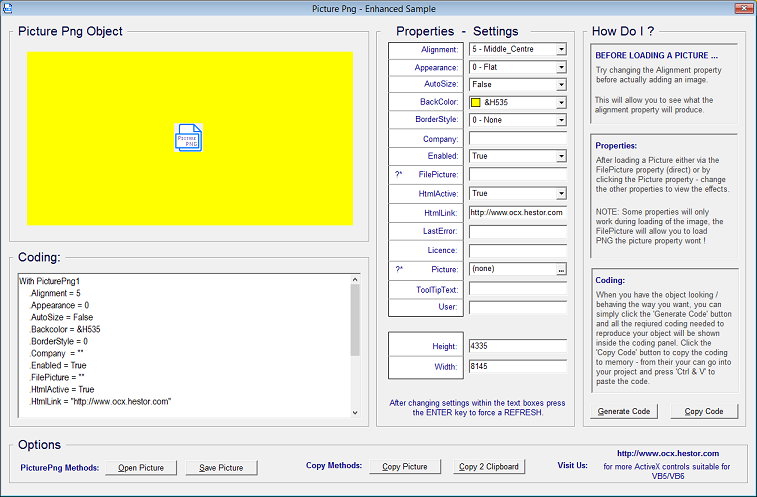
Features Include;
File Picture - Function to load PNG at Run Time.
HTML Link - Provide clickable event to open web page.
Alignment - Choose to align image to one of eight directions.
File Picture - Function to load PNG at Run Time.
HTML Link - Provide clickable event to open web page.
Alignment - Choose to align image to one of eight directions.
Design Time Mode
Actually adding a PNG image to your Visual Basic 6 project in Design Time is very simple - click the custom properties button.
Now click the button to browse and add your image.
Actually adding a PNG image to your Visual Basic 6 project in Design Time is very simple - click the custom properties button.
Now click the button to browse and add your image.


File Browser - Actually shows preview. (Right Hand Side)
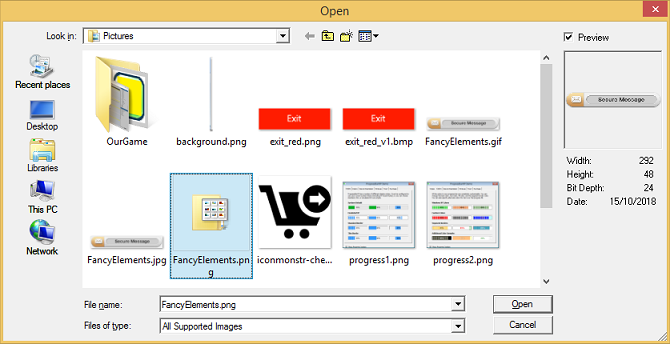
Use the file explorer to locate and select your required image.
Run Time Mode
Allowing users to select a picture
Let your users select PNG images with the built in File Browser with PNG previewer.
Dim IsOk as long.
IsOk - PicturePng1.OpenPicture(''C:\MyPng.Png'')
The chosen image will automatically be loaded into the object, the code returned should be 0, any other number means an error occured.
Allowing users to select a picture
Let your users select PNG images with the built in File Browser with PNG previewer.
Dim IsOk as long.
IsOk - PicturePng1.OpenPicture(''C:\MyPng.Png'')
The chosen image will automatically be loaded into the object, the code returned should be 0, any other number means an error occured.
Functions
Copy picture to older Picture Control.
Picture1.Picture = PicturePng1.Picture
Copy 2 Clipboard
IsOk = PicturePng1.Export2Clipboard
Save Picture
Copy picture to older Picture Control.
Picture1.Picture = PicturePng1.Picture
Copy 2 Clipboard
IsOk = PicturePng1.Export2Clipboard
Save Picture
Features
With functions being so simple to evoke;
With functions being so simple to evoke;

Adding the ability to Open, Display and Save PNG images from Visual Basic 6 is as simple as a.b.c.
Custom Property Page
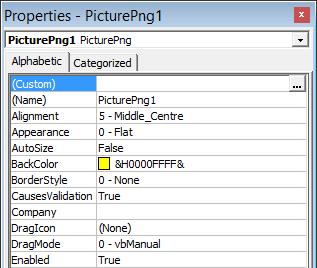
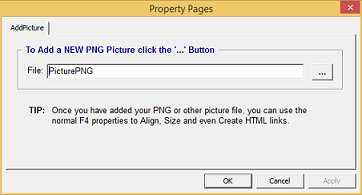
During Design Time Mode click the custom page
icon on top of the properties page.
icon on top of the properties page.
Built In File Explorer With Preview
Allow users to search for their own pictures with the built in file explorer.

Alignment
Appearance
Autosize
BackColor
BorderStyle
Enabled
FilePicture
HtmlActive
HtmlLink
LastError
Picture
Appearance
Autosize
BackColor
BorderStyle
Enabled
FilePicture
HtmlActive
HtmlLink
LastError
Picture

About
Confirm Key
Enabled
Export2Clipboard
FilePicture
OpenPicture
SavePicture
Confirm Key
Enabled
Export2Clipboard
FilePicture
OpenPicture
SavePicture